
Adding an Attachment
Attachments can be added to all Mavtrek record types including tasks, work orders, and work requests. The types of attachments (PDFs, photos, video, etc.) can be customized — contact your admin team for details.
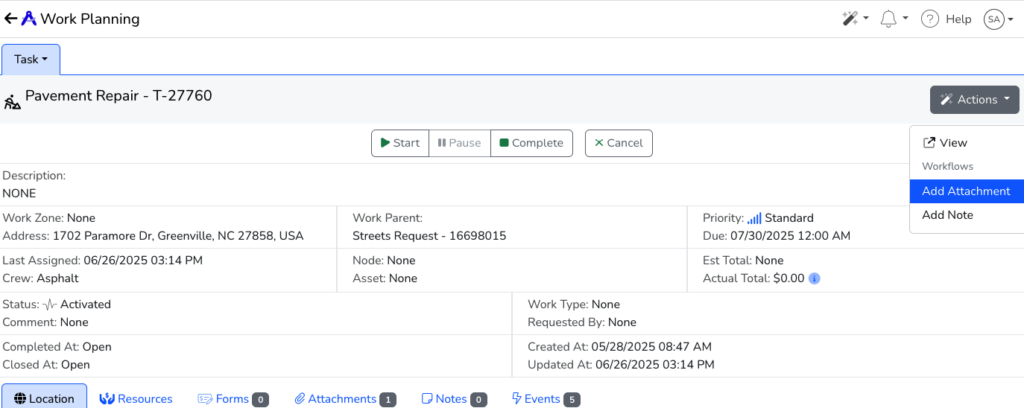
An Attachment can be added to a record by clicking Add Attachment from the Actions menu for the record:
After clicking Add Attachment, a dialog box will appear to add a Description (optional) and choose the file to upload by clicking Choose File. Once complete, click the Run Workflow button to upload:
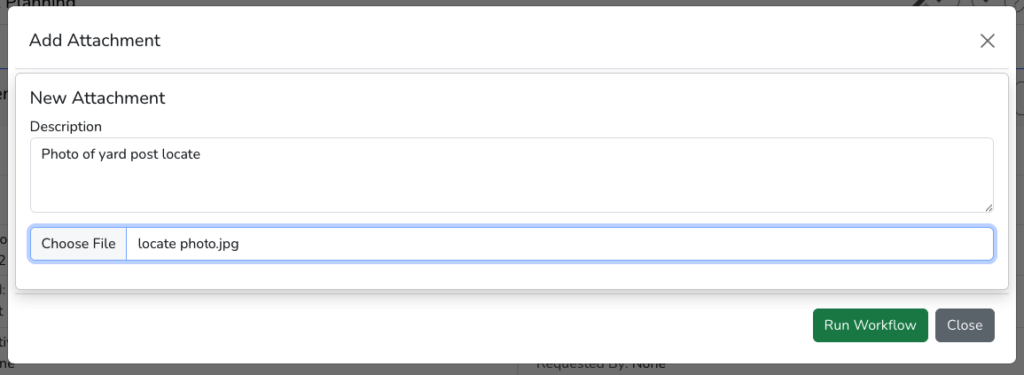
On a mobile phone or tablet, when you click Choose File, you can take a photo directly to upload – which eliminates the need to manage photos on your device.
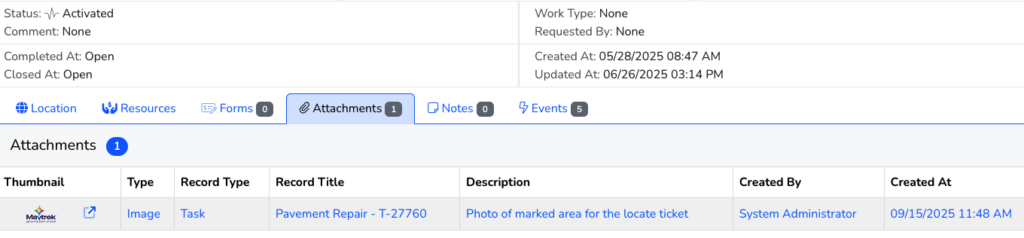
After completing the workflow, the attachment is stored in Mavtrek and available by clicking the Attachments child record tab:
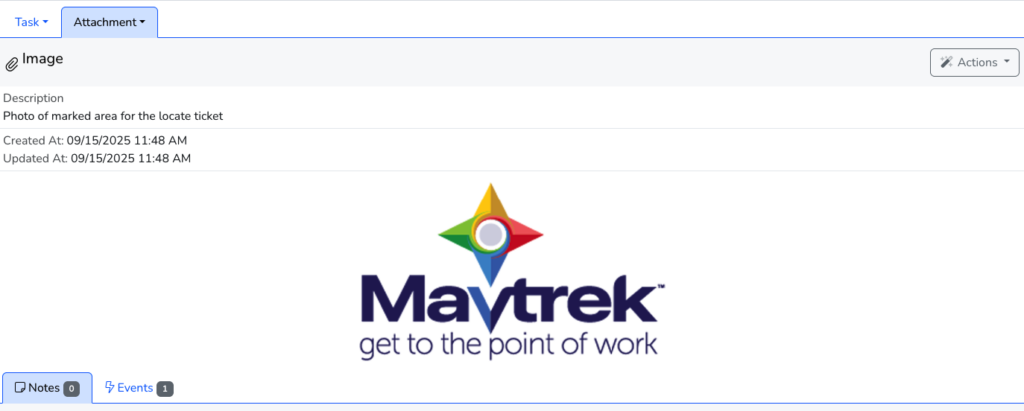
If you click the record you can view the Attachment record, the related information and the Attached file:
**Tips & Notes**
Make sure your file is a supported format. If you’re not sure whether a format is supported (PDF, photo, video, etc.), check with your admin.
On mobile/tablet, uploading directly via your camera can streamline your workflow.
After uploading, files are available under the “Attachments” tab of the record.