
Signing In
1. No Password Option
Section titled “1. No Password Option”Can’t remeber your password? No problem. Use our no password sign in option. All you will need is the email address connected to your account.
1. Enter your email address
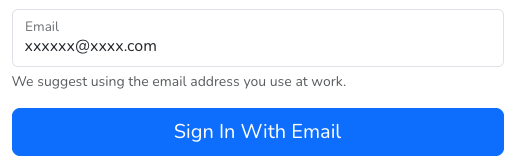
2. You will receive a one-time code in your email
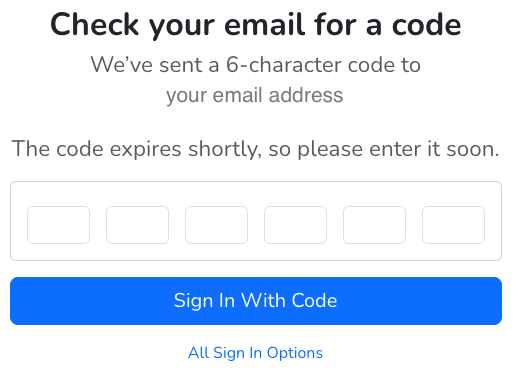
3. Enter the code in the code screen.
4. Click ‘Sign In With Code’ Button
5. Upon successful login you will be redirected back your AtlasOMS homepage.
2. Username and Password
Section titled “2. Username and Password”For customers that use the username and password option, please use the link at the bottom of the page to enter your username and password.
1. Click on the link ‘use your username and password’
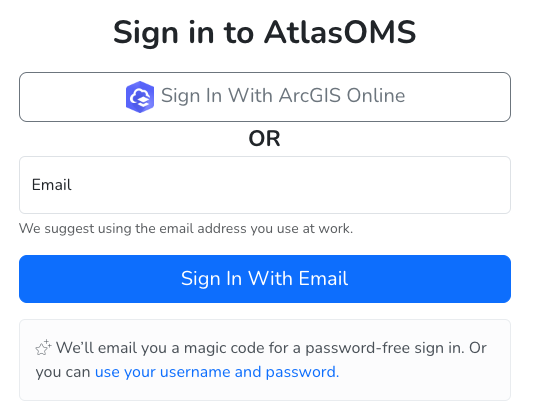
2. Enter your username and password.
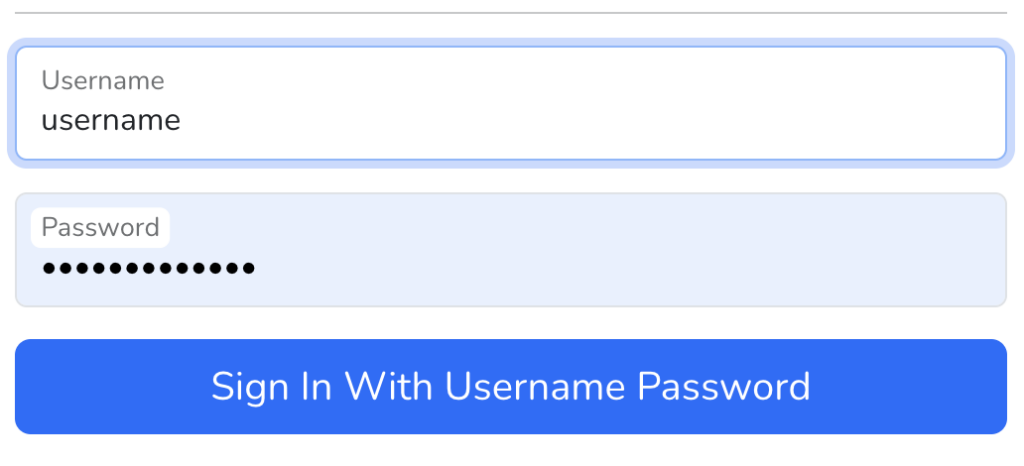
3. Click on the button ‘Sign in with Username and Password’
4. Upon successful login you will be redirected back your AtlasOMS homepage.
3. ArcGIS Online Login
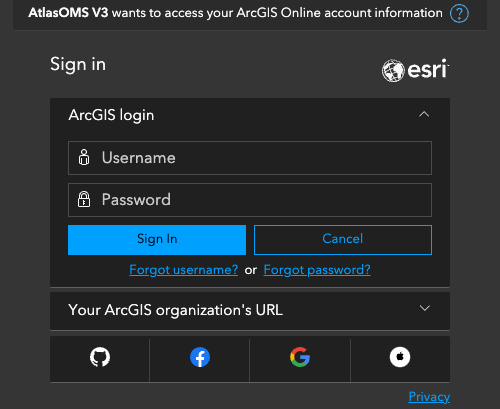
Section titled “3. ArcGIS Online Login”For customers that use the ArcGIS Online sign in option, this option stays the same.
1. Click on the ‘Sign In With ArcGIS Online’ button.

2. After being taken to the ArcGIS login page, enter your ESRI username and password and click the “Sign In” button.
3. Upon successful login you will be redirected back your AtlasOMS homepage.